Monday, June 24, 2013

on Leave a Comment

Samsung Ativ Q Windows 8 and Android hybrid tablet revealed


Samsung held the Premiere 2013 press conference in London last night and showed off plenty of new hardware based around Windows and Android. The star of the show was a device that runs both of these operating systems, theSamsung Ativ Q.
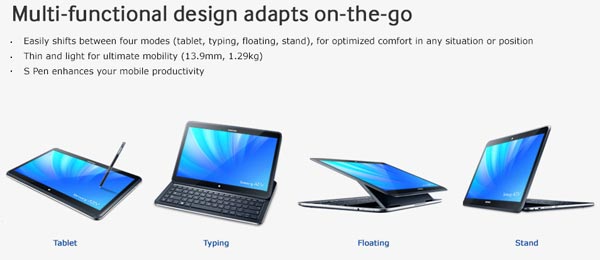
The Ativ Q is a hybrid tablet convertible with several operational modes. In any of the modes, such as laptop mode, tablet mode or presentation mode you can enjoy using the Ativ Q with either Windows 8 or Android Jelly Bean OSes. This device looks to run very smoothly and slickly. For a good overview of all the operational modes and how easy it is to switch between operating system environments have a look at the video below.

Android Central had a quick hands-on at the London event last night.
The key user benefits of the Ativ Q are suggested by Samsung to be the following:
  • Best of both worlds – Android and Windows apps work in their native environments and you can share files and folders between systems.
  • Versatility – the built-in keyboard and hinge mechanism allow four modes of operation including laptop mode, tablet mode, presentation mode and float mode. The thinness and lightness of the Ativ Q (check the specs below) helps facilitate its portability and comfortable handling.
  • Viewing experience – “The ATIV Q introduces the world’s highest resolution, QHD+ (3200x1800) display.” The display is 13.3-inches in diagonal and is said to be perfectly usable outside in bright light.
The hardware specs of the Samsung Ativ Q are impressive, have a browse of the spec table embedded below. However the spec list doesn’t mention that this device comes with Samsung’s S Pen stylus. TechCrunch suggests this is useful for poking “the tiny menus of classic Windows”.
Pricing for the Samsung Ativ Q will be announced at a later date. It will be interesting to see how it compares to the ASUS Transformer Book Trio which treads over similar ground.
on Leave a Comment

Find lost serial numbers with Mac Product Key Finder

           Even the most organized system may not hold a record of all serial numbers and product keys that you need. Here’s one tool that might help you retrieve them.

As a best practice (and general rule of thumb) I always try to keep digital copies of software applications and their respective product keys in a repository on my local computer, an external backup drive, or if providing services for a client, on their local server. Not only does this provide an easy-to-access source for pertinent information and apps, but also complements the hard copies usually stored on removable media and printed invoices with serial numbers.
But in over 15 years in IT, I’ve learned that every location has their system for organization — sometimes this system is no system whatsoever! So what do you do in a case like this, when a product key is needed to reinstall software for a lab full of computers and there is no paperwork indicating what the key might be? A key finder of course!

Key finders have been around for many years through different iterations. They’re usually very small apps that serve one purpose — to crawl the local system (or registry if you’re on Windows) and decode the encrypted serial number/product keys for installed software, then report it back to the end-user. It doesn’t get much more straightforward than that!
Windows users (for those in mixed or heterogeneous networks) have many apps to choose from. However, Mac users have only one reliable choice, Mac Product Key Finder.

Figure A

Opening the .DMG file from the download link on the site reveals two versions of the app, Free and Pro. (Figure B) The free version works pretty well at retrieving lost serials, yet little else.

Figure B

Using the Pro version will cost a one-time fee of $24.95, but offers the following:
  • Expanded database of detectable apps by 250%. (Figure C)
  • Includes hooks for terminal use (meaning it’s scriptable)
  • Allows deep searching of not only the local workstation, but also remote searching on nodes within the network just to name a few. (Figure D)

Figure C

    Figure D

    As with any application, it’s not foolproof. Unfortunately, finding keys through this method is sometimes impossible due to the encryption utilized by certain software vendors barring recovery of the serial numbers. This is understandable, as in the wrong hands, this app could be used to recover 100’s of keys to software protected by volume licensing, potentially wrecking havoc on daily business functions in your organization. However, in the correct hands and with proper use, this piece of code could become part of your network/system administration toolbox, alongside password reset and data recovery software.

    Tuesday, June 18, 2013

    on Leave a Comment

    How To Encrypt Data on Your Smartphone

    how to encrypt smartphone data
    Prism. That’s the new buzzword out there for the infringement of your privacy when it comes to cellphones. If you think Verizon is the only carrier that a government has its nose in, I’d suggest that you are a little naive. With the Prism-Verizon scandal, what allegedly has been happening is that the United States of America’s National Security Agency (NSA) has been data mining.

    That is, they have been going through the call records of Verizon’s approximately 99 million users looking for, well, anything! The call records don’t include the conversations themselves, but data such as phone numbers dialed, time and date of call, and duration of call. But if I’ve learned anything from Gene Hackman movies and Wired Magazine, it’s that when it looks like the government has a toe over the privacy line, they’ve really actually driven a white van across it and camped out in your backyard a long, long time ago.


    If the thought of the occasionally overzealous government official isn’t enough reason to encrypt your smartphone, then all the identity thieves and scammers out there ought to be. Think of how much of your personal information a bad guy could get, if they found your phone. Names, addresses, passwords, account numbers, and goodness knows what else. For a different take on Internet monitoring, check out James Bruce’s article, about how Internet monitoring laws will make criminals harder to catch.It’s very timely, all of a sudden.
    Today, I’m going to show you a few things you can do to make that information a bit more secure.

    How to Encrypt Smartphone Data

    If you don’t at least have a PIN number that you have to enter to access your phone, you really need to do that right now. You can do it with either a PIN, pass phrase, swipe pattern, or even face and voice recognition. Any of these is better than none of these. You may also want to take any lock screen widgets off as well. These can reveal what town you live in, or maybe even what stocks you are following. Go ahead, set it up, I’ll be here when you get back.
    how to encrypt smartphone data
    What can you tell for certain about me from my lock screen now? That Telus is my service provider, so I’m probably in Canada. That’s it. Everything else is common information such as the date and time, and temperature. That tip alone could save you from prying questions of overly-observant shoulder surfers. “Say, I see you work in IT too!”, “Is that your little girl? What’s her name?” Creepy questions, when asked by creepy people.

    Encryption is The Key

    To really secure your information, you need to use some sort of encryption. By encrypting the data on your phone, even if someone gets past your lock screen, whatever else is on the phone is pretty much useless to them. Unless they have a lot of time and the right skill set, of course.
    Whether you have an iPhone, Android, or Windows phone, you should encrypt most, if not all, the data that is on the phone. Let’s take a look at how the different phones allow you to encrypt your personal information.

    Android Encryption

    Go into the Settings screen and scroll down until you find the Security tab. Click on that and you’ll see a couple encryption choices. To encrypt the entire device, click on Encrypt device. What this will do is encrypt all of your data, and you’ll need to enter your password to decrypt it every time you turn your phone on. This process can take quite awhile, somewhere around an hour, depending on how much data you have to encrypt. This process requires a 6 character password with at least 1 number.
    It’s important that the Galaxy Nexus user manual notes that, “If you already set up a screen lock, you must use the same PIN or password. You can’t have two PINs or passwords.” If my permutations math is worth a damn at all that’s more than 371,993,326,789,901,217,467,999,448,150,835,200,000,000 permutations. That’s a lot. Like, more than a bunch.
    Okay, I used a calculator.
    smartphone encryption
    If you are using an external SD card to store sensitive data, you can choose the Encrypt external SD card option on the Security screen. There are some options when encrypting an SD card – you can either encrypt the entire card, or only new files that you are adding to the card from this point in time onward. Again, it uses a password to decrypt the files. Just like the device encryption, it’s a 6 character password with at least 1 number.
    smartphone encryption

    iPhone Encryption

    The process for encrypting the data on your iPhone is absurdly simple, at least in iOS 6.1. All you have to do is set a passcode to access your phone when you turn it on. The catch is that only iMessages, mail messages, and attachments stored on the iPhone and some apps available from the App Store may use the data protection. That’s according to the iPhone iOS 6.1 manual. If someone attempts to figure out your passcode, after 10 failed attempts, your encryption key, and therefore your data, is erased provided you’ve enabled the Erase Datasetting in Settings > General > Passcode Lock.
    When you back up your iPhone to your computer via the iTunes application, you can encrypt all your phone data that is backed up. This is a good idea as well.
    smartphone encryption

    Windows Phone Encryption

    It seems that Microsoft has caused a lot of confusion for Windows 8 phone users, when it comes to encrypting their phones. According to the Windows 8 How-To page, “Other security features, such as device encryption, can be turned on by your employer via a company policy.” I haven’t priced out Exchange Server lately, but most non-corporate users of a Windows phone are not going to buy it. There also seems to be a lot of confusion about whether the feature can be turned on if you have an Office 365 subscription. I chatted with a Microsoft rep, and their response was that I would need the Exchange Online Plan 1, at $4.99/month.
    Even then, if you look at the transcript of the conversation, I don’t think they were too sure this would work either.
    how to encrypt smartphone data

    This is a real shame, since Microsoft is using the BitLocker technology to encrypt the phone’s contents. This is a powerful tool indeed! I’ve covered the basics of how BitLocker works and the degree of security that it gives you. Mind you, there are some Windows Phone 8 apps that will give you some sort of encryption on different file types, although it would be nice to have this functionality native to the phone, like the Android and iPhone. Too bad Microsoft, too bad.

    If you’re looking for encryption software for your Windows Phone, I’ve already done the search.

    The Take Away

    Is the government going to be snooping through the files on your phone? Most likely, no. Should you encrypt the contents of your smartphone anyway? Yes, there are lots of two-legged rats willing to crawl all over your phone for any tidbit that can profit them. Which phone seems to do the best job of encrypting data? I’d have to say that the Android phone does, since it is the only one that natively can encrypt the entire contents of your phone, with the iPhone just behind it, and Windows Phone coming in a distant third. Really distant. More of a no-show, really.
    Is your smartphone encrypted? Did you use a third-party application to do it, or just what the phone came with? Has it made it difficult to use your phone at all? Do you think it’s necessary to encrypt your phone? Why don’t we talk about it, unencrypted of course, in our completely unsecured comments below.
    on Leave a Comment

    How to Wipe Your Hard Disk Drive Leaving the OS Intact

    how to wipe hard drive
    So you want to get rid of your computer. To keep your data secure — whether it’s financial records, business information, or anything else private that you don’t want people snooping through — you’ll want to securely wipe the hard drive. This ensures that no one can recover the deleted files. However, you don’t want to wipe the operating system itself — you want to provide a fresh operating system so the computer’s new owner can use it.

    Just re-installing your operating system or restoring from your recovery partition isn’t enough to guarantee that your files won’t be recoverable. When getting rid of a PC that has potentially sensitive data, you should wipe the drive to be sure your data can’t be recovered.

    Why Securely Wipe

    Sure, you could just delete your personal files, or even re-install Windows or use the Reset Your PC feature built into Windows 8. However, this could leave some of your personal data behind.
    When you delete a file, it isn’t removed from the hard drive immediately. Instead, the computer marks the area as usable and it can be overwritten in the future. This means that your personal files may remain accessible, even after deleting them. If you’re getting rid of your PC and don’t want people accessing sensitive data — for example, tax documents withyour social-security number and other personal data — you’ll want to securely wipe its storage before getting rid of it.
    The process of “wiping” just refers to overwriting all the sectors on your hard drive, replacing their contents with zeroes or random nonsense. This will overwrite any data that’s been marked as deleted, but which can be recovered.
    If you don’t do a secure wipe, it’s possible that people could use a file recovery like Recuva to recover sensitive files from your hard drive.

    Solid-State Drives vs. Magnetic Drives

    The below advice doesn’t apply to solid-state drives, provided TRIM is enabled. When you delete a file on a solid-state drive, it is deleted immediately. If your computer has a solid-state drive, all you need to do is make sure TRIM is enabled and delete your personal files — or better yet, use the Reset Your PC built into Windows 8, re-install Windows, or restore your computer’s operating system from its recovery partition.
    Using a drive-wiping tool on a solid-state drive is actually a very bad idea, as the additional writes can reduce a drive’s lifespan.
    how to wipe hard drive

    Ways to Wipe the Hard Drive and Leave the OS

    We’re assuming that you want to end up with a PC with an operating system installed, but one where you’ve wiped all your personal data so no deleted files can be recovered. You can do this in several ways:
    • Completely Wipe Your Hard Drive, then Re-install Windows: Use a tool likeDBAN (short for Darik’s Boot and Nuke) to wipe your computer’s hard drive, eliminating everything — including its operating system.
    how to wipe hard disk
    You can then re-install Windows from a Windows disc or re-install your computer’s operating system from a recovery disc the manufacturer provided. Note that DBAN will wipe any recovery partitions on your computer’s hard drive, so you won’t be able to restore Windows from the recovery partition.
    how to wipe hard disk
    • Re-install Windows, then Wipe Your Data: First, use the Reset Your PC feature built into Windows 8, restore your PC from its recovery partition or disc, or re-install Windows from a Windows disc. You should then have a clean system without any personal data — be sure to check that all your personal data has been deleted, including data on separate hard drive partitions that may not be wiped by the recovery process.
    how to wipe hard disk
    Once you have a fresh Windows system, you’ll just need to wipe all the free space. You can use a tool like the Drive Wiper tool built into CCleaner to wipe only your hard drive’s free space, ensuring that no deleted files will be recoverable.
    how to wipe hard drive
    You could try to delete all your personal files and then use a Drive Wiper tool without re-installing Windows at all, but you’re better off starting with a clean operating system to ensure your data is removed. This also allows the computer’s new owner to start with a fresh operating system.

    If You Don’t Care About the OS

    If you don’t care about making the computer usable for its new owner, you can always just run a tool like DBAN and leave the computer with an empty hard drive. This will prevent the computer from booting until its new owner installs an operating system.
    However, this probably isn’t the best idea unless you plan to trash the computer or its hard drive. Leaving the computer’s operating system intact will make it easier for you to sell it. If you’re giving it away for free, it will result in less work for the computer’s new owner.
    Do you have any other tips for securely wiping a drive without obliterating its operating system, or do you have any favorite tools to share? Leave a comment below!

    Monday, June 10, 2013

    on Leave a Comment

    Ever Wanted to Make Your Own Online Radio Station? Here is how to do it..


    ▶ Just before you read this article, take  a look at what I was able to do. I just became an RJ in a few minutes!
    ▶ Check this out! I am sure even you will feel like becoming one!
    ▶ There are potentially various uses of setting up an online radio. That may be to share information/music among your friends in your college, office or community.
    ▶ In fact, you can share your thoughts with the whole world!
    ▶ Well, if you are ready to spend your next 15 minutes reading this article, I am all ready to teach you to start your own online radio station for free.
    ▶ This is a pretty big article but I am sure you will learn something new at the end.
    Be a part of our knowledge sharing. Share this!!


    That Big Smile On Your Face!
    Radio, I get quite nostalgic when I say that word. We have all grown up listening to the radio right from our childhood.  We would have listened to various songs, music, talk shows, educational shows and more on it.
    Now, if you can close your eyes and recall those beautiful moments for a few seconds, I am sure you will have a big smile on your face. Well, there may be many reasons for that smile but there is only one thing responsible for it -  Radio.

    There are many of us who always wanted to be there in the studio doing all the RJ stuff like playing music, jingles, talking all day, cracking jokes and more.
    Some of you might have dreamt of taking part in a radio show, some of you would have wanted to play only the music of your choice, some of you would have wanted to show your crazy talent but would have not got a chance to do so.

    Well, how about starting your own radio station that everyone can tune into?
    Sounds crazy, right?
    Well, if you are ready to spend your next 15 minutes reading this article, I am all ready to teach you to start your own online radio station for free.
    This is a pretty big article but I am sure you will learn something new from it.


    What All do you Need to Set Up an Online Radio Station?
    Not much actually!
    • You will need a broadcasting machine worth Rs.22 lakhs or $40,000.
    • You will need a studio, maybe, that would be around Rs. 50 lakhs or $90,000.
    • Some Radio Jockeys (RJs), office staff, equipments and few more things.
    • On the whole, it would cost you around a few crores or few million dollars.
    (Okay, I was kidding!)
    Fortunately, you will not need anything unusual except a PC with a broadband connection, a microphone (a headset with built-in microphone will be better) and some time of yours.


    Spreaker – Make Your Own Online Radio Station with Ease

    Without having to invest a penny, you can have your own radio station. How is that possible? Well, that is what the Spreaker is all about!
    It’s a freemium service where you have both free and premium plans.
    There are many such radio services available online but my choice was Speaker for its simplicity. It lets you create, broadcast and share a radio show across the Internet with ease.

    Speaker provides you with various necessary tools like a mixing console, a music and sound effects library and also the ability to broadcast live radio through a widget which can be embedded in social networks, blogs and websites.
    To get started, you will have to visit the Spreaker website here and sign up using your Facebook account or choose the option “sign up without using Facebook”.
    Next, you will be shown a new window from where you can follow some of the coolest and popular people on Spreaker. (You may be one among them soon.)

    Up next, you will be asked to introduce yourself. Make sure your microphone is well connected and all set to use.
    2a
    Now, click the big yellow “Rec” button. Click allow on the flash player setting pop-up to start recording. Just give a brief introduction on who you are and what you to do on your radio station and again click on the yellow button once you are done to stop recording.
    Once again, click on the yellow button to preview the introduction and if you don’t like it, you can re-record it (click on START AGAIN) or if you are fine with what you have done, click on “PUBLISH”.
    Up next, you will be directed to the main dashboard from where you can completely handle all aspects of your radio station.


    How to use Spreaker and Run Your Shows on it?
    Now that you are in the dashboard, let me go further and help you go on air.
    In the top left of your dashboard click on “BROADCAST”. You will be given 2 options, one is to broadcast from Spreaker and the other is to upload from your computer. Choose “Broadcast”, enter a title and click on “NEXT”.
    Click allow in the flash player pop-up and the “Deejay Console” will open. The Deejay Console is where you will be doing your broadcast from. Well, this is the place where everything happens.
    By default, The Broadcast LIVE! mode is selected, however, you can switch between24/7 Non-Stop mode (only for premium users) or Record a new podcast mode where you can record your shows but it is not live.
    The entire console is divided into various sections. The picture below will help you understand it better.
    Make Your Own Online Radio Station
    The above snapshot must be able to give you a rough idea but let me give you a better picture of it.
    To start  broadcasting, you will have to click on the Record button as seen above. To stop the broadcast, you will have to click the same again.

    As seen in the picture, the microphone section will let you control your speech volume and also switch between qualities like HI (high), MED (medium), LOW.

    What is the point of running a radio station if you don’t have music in it? Well, the 2 deck panels allow you to add music from the playlist that you can broadcast.

    Now a quick question pops-up. How to add music to the playlist?
    That’s a good question you have! Of course, without having uploaded any music till now, how will you able to play music?
    You will have to upload all your music, jingles, sound effects to the MUSIC LIBRARY section in that can be found at the top right of your dashboard.
    Here is the link to make it easier for you: http://www.spreaker.com/dashboard/library
    Upload all that you want to play on your station to your music library. Since, you will be using the free version, you will be able to upload up to 10 hours of songs! Well, that should be more than enough! Whenever you want to upload new song, delete the old one and upload the new one, that’s it.

    Once you have uploaded the songs there, in your Deejay Console, go to the Playlist section and click on the “add” button.  There, you can search for the song or you can simply choose it from the LATEST and click “Add”. This way, you can add the songs to playlist.
    8

    Once you have added songs to the playlist, close the library and return back to main window. Now from the playlist, you can drag and drop songs to Deck 1 and Deck 2.
    start my own online radio station

    From Deck, you can play the songs while you broadcast.
    10

    Once you start your broadcast, you will see a link at the top right of the page which you can copy and share with anyone.
    Using this link, anyone can tune in to your broadcast and enjoy your show LIVE.
    12
    If you have already connected your Spreaker account with Facebook, then whenever you start a broadcast, you will be given an option to publish the broadcast on your Facebook page as well. This will notify your friends on Facebook about your new episode and will let them listen to your show.

    There are lots more stuffs you can do with the Spreaker. Just take some time to explore it. I am sure you will be a better RJ. You will also have loads of followers.


    Final Thoughts
    You can use Spreaker to do broadcasts about a lot of things! It may be in your school, college, university, office, a community or others.
    It has a lot of potential applications and your imagination is the only limit.
    Just before you start a broadcast make sure you have enough songs, sound effects and jingles in your playlist. This will make it easier for you to run your show during the live broadcast.
    Once you start your radio station, make sure that you do regular broadcasts, this way you will have more followers and gain more popularity.
    Also connect Spreaker to Facebook, Twitter and Google+ and share your shows in there.
    Let me know how you plan to use Spreaker? Do you find it interesting? What say?
    on Leave a Comment

    How to Start Freelancing With No Experience


    The freelancing industry enjoyed impressive growth in the past several years.
    How-to-start-freelanceIn 2011, the Financial Times (UK) reported a 12% growth in the number of freelancers from 2008. Popular freelance broker site Elance enjoyed consistent growth in past years, with the number of jobs posted rising from around 200,000 in the first quarter of 2012 to 300,000 in the same period in 2013.
    In addition to a more flexible work schedule, freelancers tend to be happy. According to the 2012 Freelance Industry Report, 90% of freelancers are happier now than they were before going solo, and nearly half felt no impact from the economic downturn. Perhaps most tellingly, 77% of freelancers were optimistic about their business prospects over the following 12 months.
    With freelance work being such an enticing prospect, no one would blame you for giving it some serious thought. However, a common issue is simply not knowing how to start. Fortunately, building a successful freelancing career is easier than it seems — just follow the steps below.

    1. Choose Your Craft

    Just about everything can be outsourced these days. That's why there's a strong likelihood that the skills on your résumé contain one or more freelancing opportunities.
    You may be required to think outside of the box — we're not all graphic designers or programmers. However, you may find that your "secondary" skills can offer up freelancing opportunities. For instance, if you are a strong writer, then you have the potential to develop a freelance writing business.
    Don't be paralyzed by a preconception that you do not have the necessary skills or experience — you would be surprised how little experience you need in order to get started. A little faith in your abilities will take you a long way.

    2. Create a Brand

    If you plan to succeed in the world of freelancing, you will need to create a strong brand that sets you apart from the competition. Your brand is your identity (i.e. your website, blog and social media accounts) and it should clearly communicate your unique selling proposition — what you do that makes you special.
    With that in mind, you should narrow down your focus to a specific industry. For instance, as a graphic designer you might choose to do branding work for digital startup businesses only. This form of specialization will make you far more attractive to a specific set of prospective clients and give you a greater chance of success. You can try to cater to all and sundry, but you will probably only provoke indifference.

    3. Build a Portfolio and Source Testimonials

    Image via iStockphotoantikainen
    The world of freelancing lacks the red tape of the corporate world. Many prospective clients are not concerned with qualifications; they simply want to see what you have done in the past and judge whether it is the right fit for them.
    Therefore, if you are good at what you do and can demonstrate your skill through a quality portfolio and positive client testimonials, you have every chance of success. The conundrum, however, is in building a portfolio without experience.
    Many freelancers will react to this by picking up the smallest and least lucrative jobs around, but that puts them into a vicious cycle of bargain-basement work. To work for high-paying clients, you need to demonstrate that you are worth big money by doing good work.
    So don't be afraid to do pro bono work for the right clients when you are first starting out. The free work you do at this stage can ultimately be priceless when it clearly communicates your worth to future potential clients via an extensive portfolio and glowing testimonials. Also, offering your services at no cost is a gentle introduction into the world of freelancing where you do not feel the pressure of having to deliver a service of requisite value.

    4. Start Pitching

    You should only seek paying clients when you are able to demonstrate your abilities (and your reputation) with a quality portfolio and testimonials. Once you have done so by working on pro bono jobs, it's time to start pitching.
    But whom should you pitch? Well, if you branded yourself correctly then you should knowexactly whom to pitch. By having such a narrow focus, potential clients are far more likely to take you seriously than if you offered a generic service. Businesses want to work with freelancers who seemingly came into existence to serve them specifically — you can create this illusion through specialization.
    Potential clients can be found everywhere: from Google to social media to your doorstep. The possibilities are endless.
    The two keys to successful pitching are relevance and volume. Only pitch those clients who fit the mold of your brand and pitch a lot of them. Ruth Zive of Marketing Wise, a content marketing firm based in Canada, had a "ten before ten" rule when she first started out as a freelance writer — she would make sure to pitch ten prospective clients before 10 a.m. every working day. Those numbers add up quickly.

    5. Play the Odds

    Ultimately, securing freelance work is a numbers game — the more prospective clients you contact, the more likely you are to find work. That is the equation you should keep in mind. If you have a reasonable skill set and create a quality brand, there is no reason why you cannot succeed in the world of freelancing like so many others have before you.

    Mashable Job Board Listings

    The Mashable Job Board connects job seekers across the U.S. with unique career opportunities in the digital space. While we publish a wide range of job listings, we have selected a few job opportunities from the past two weeks to help get you started. Happy hunting!
    Powered by Blogger.